TL;DR
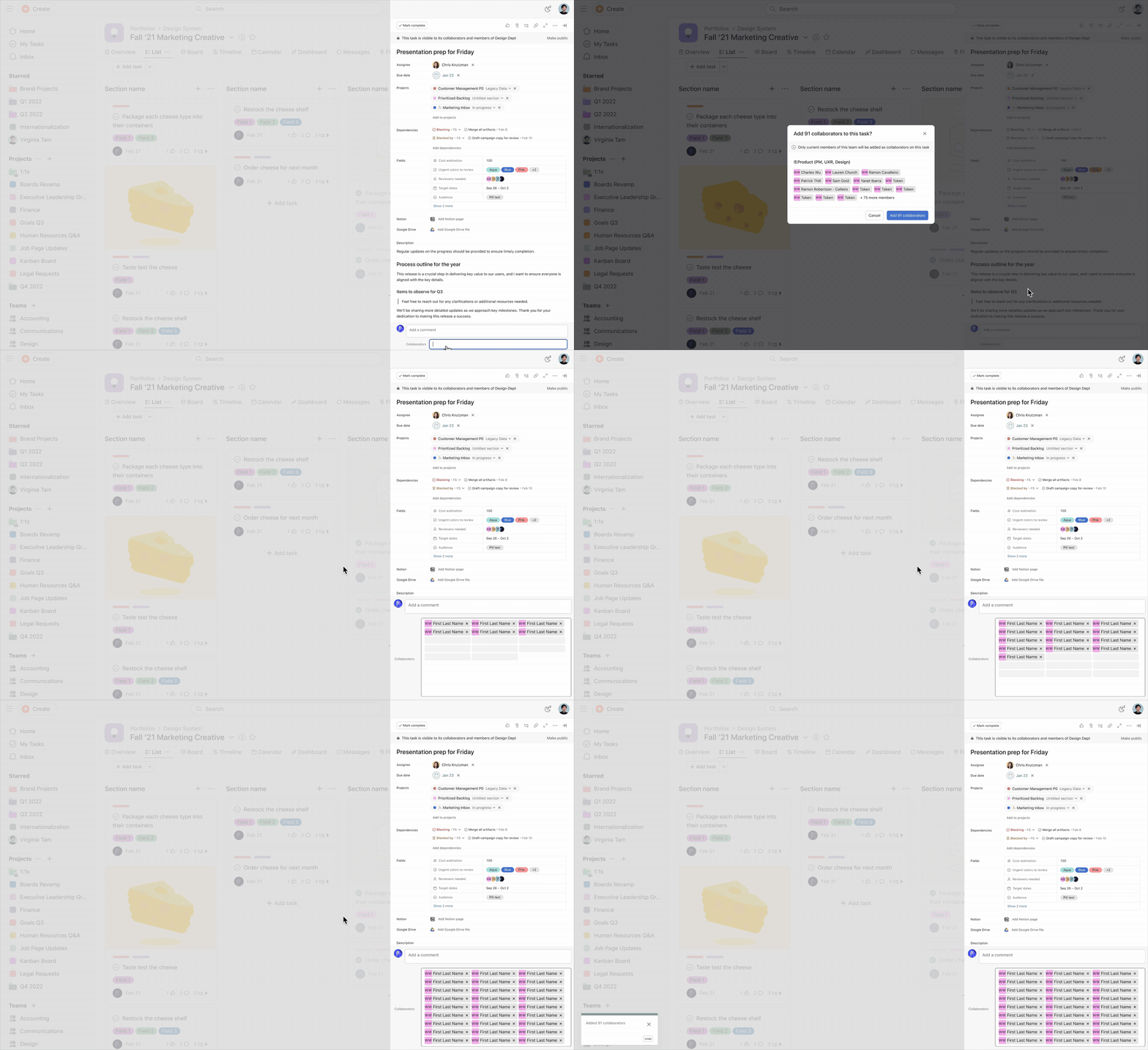
Asana only let you add collaborators to a task one person at a time. I designed team tagging, which lets you tag a whole team and add all its members at once. A warning modal confirms exactly who’s being added, and the feature appears wherever people already tag users, including Rules, Asana’s automation builder. Stakeholders approved the design, and it’s scheduled for implementation.
Problem
Problem
Enterprise users often need to loop a whole group into a task, but Asana only let them add people one at a time. That’s slow, and it gets harder as teams grow.
Constraints
Due to engineering limitations, teams would temporarily unfurl into individual members instead of preserving the team as a unit. Engineering plans to solve this problem in the future, but this solution is an MVP for the bigger feature. The proposed solutions needed to be clear, scalable, and intuitive while maintaining Asana’s UX patterns.
Key challenges
Efficiency
Adding a 20-person team means adding 20 users to the collaborators field one by one.
Scalability
Due to the engineering constraint, tagging a team turns it into a list of individuals. If the team changes later, the task does not update.
Clarity
Workspaces can have teams with similar or identical names, so users need to be able to identify that they are tagging the correct team.
Solution
Team access
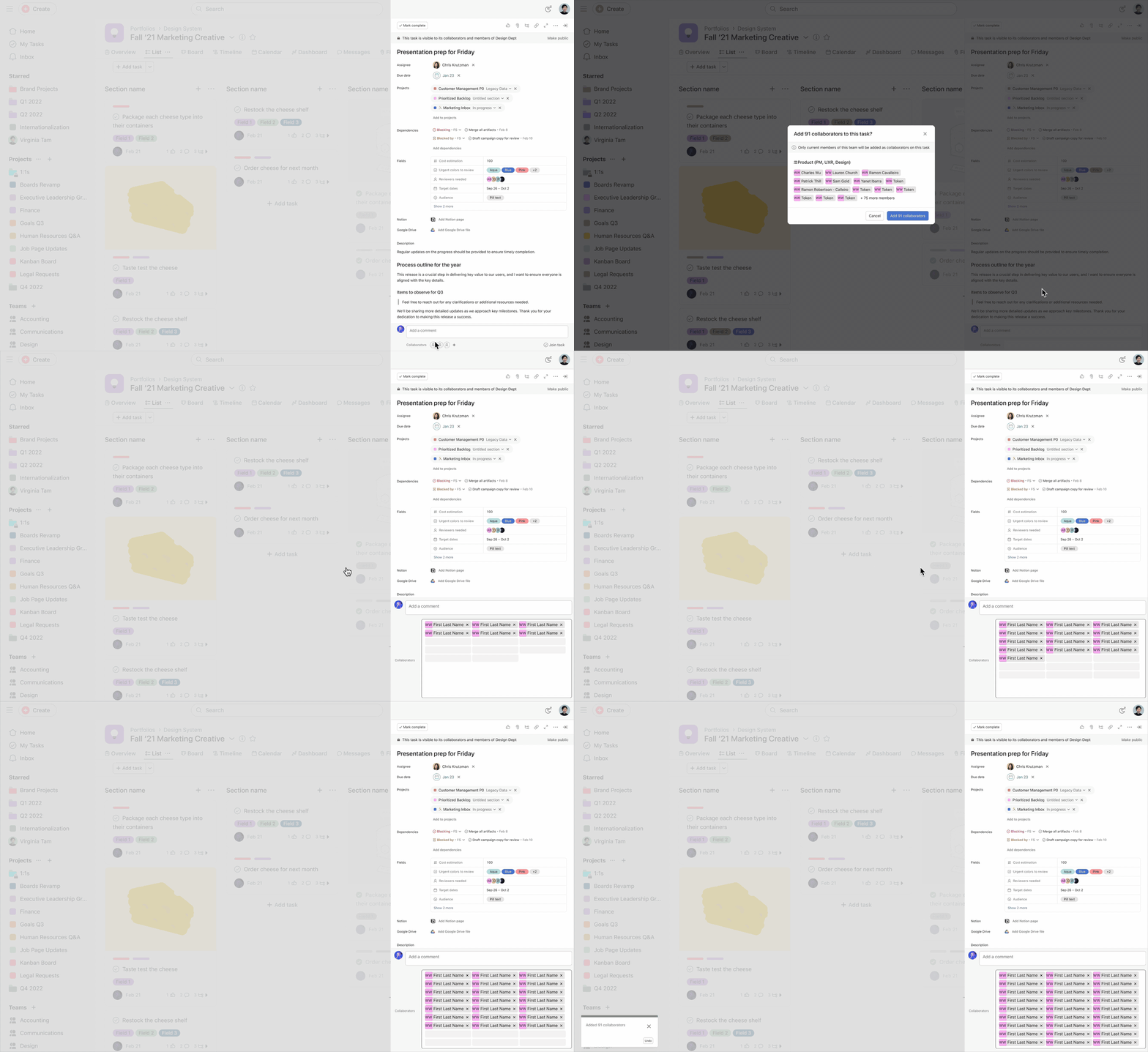
Grant access to teams through the collaborators field, task description and comments.
Notifications
Inform users when a team is added to a task.
UI warning
Address the potentially disruptive impact of adding multiple users at once.
Automation
Integrate with Asana’s AI project automation to streamline the process.
How I solved it
How I solved it
Mapping the user flow
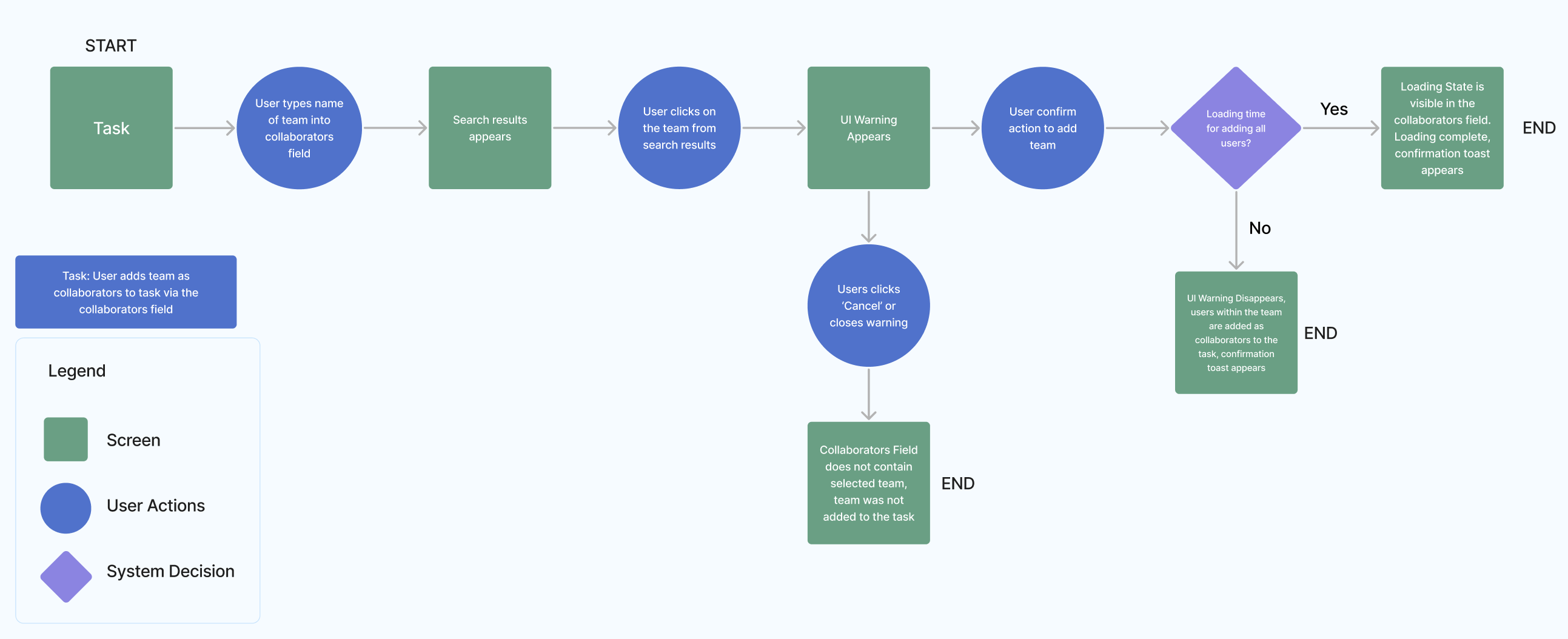
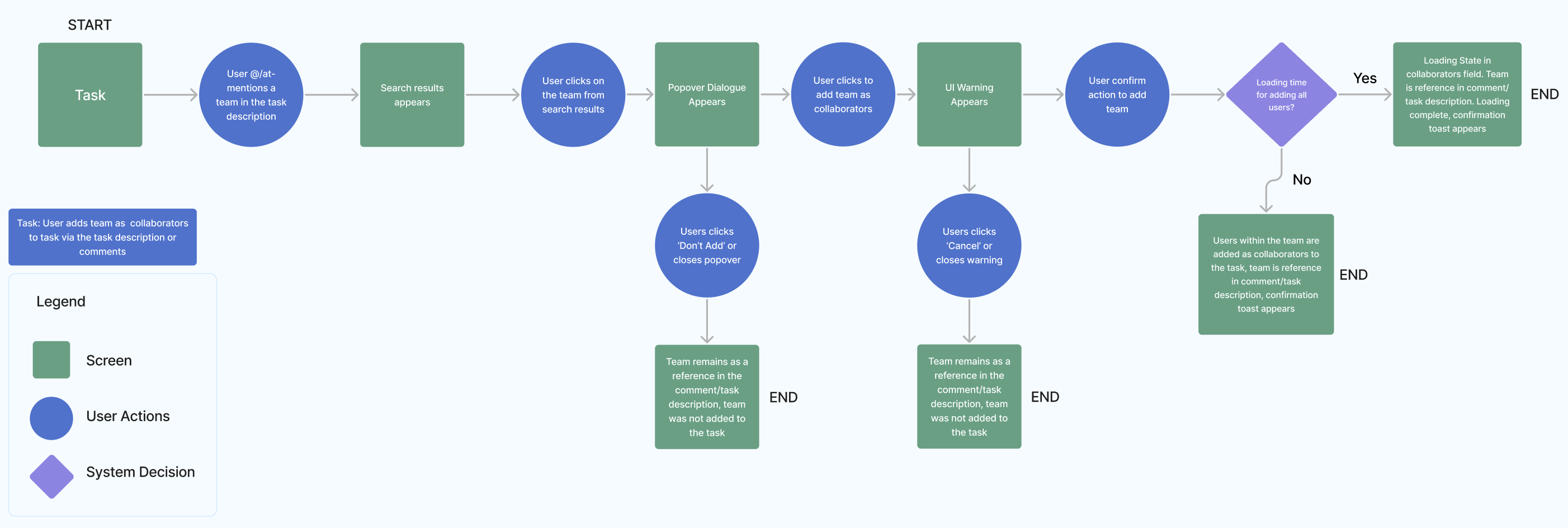
To start, I mapped the user journey for adding a team to a task. Access works differently in each place a team can be tagged. The collaborators field adds people to a task so they get updates and can weigh in without being assigned the work. The task description and comments are text fields, and because they behave alike, I grouped their flows together. As I refined the designs, the flows evolved.
Creating the warning
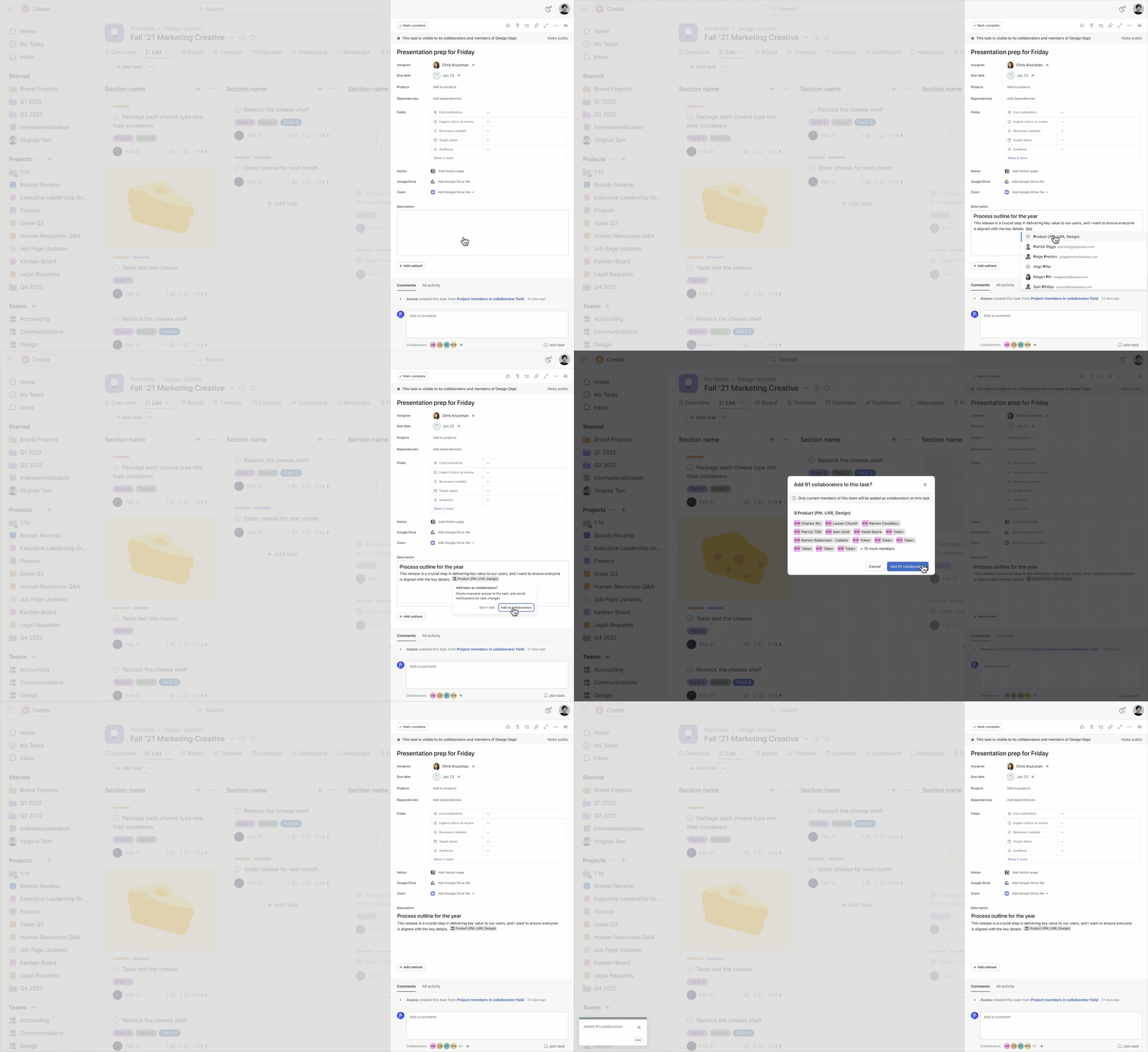
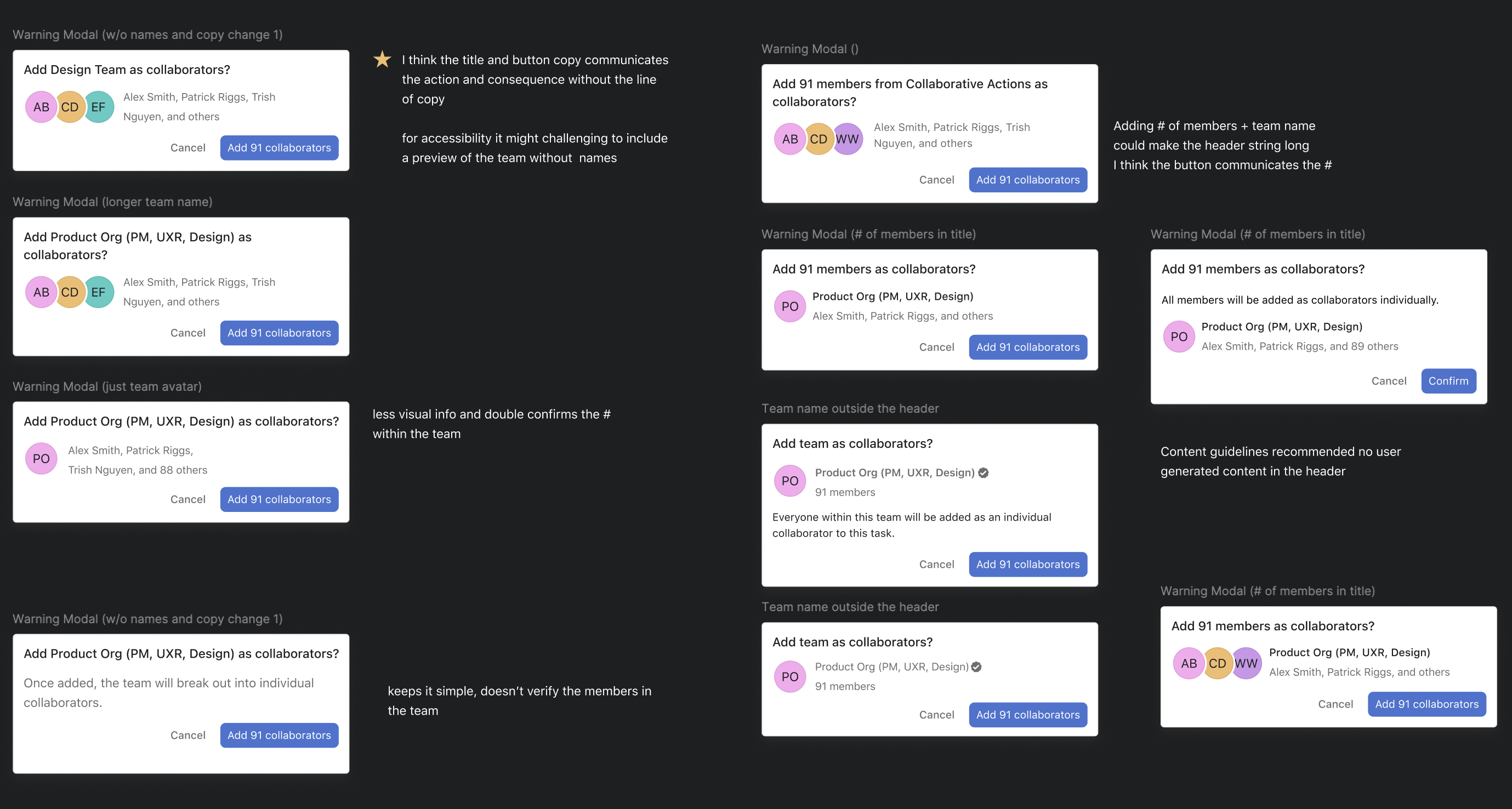
As a new designer at Asana, I started by exploring the current flow, mapping the in-scope product surfaces affected by the problem, and reviewing relevant past work. From there, I designed several iterations of the warning modal around four principles:
- Remind users which team they are adding
- Let them confirm it’s the intended team, especially when several teams have similar names
- Show how many members the team has
- Explain that the team will unfurl into individual members, and that people who join the team later won’t be added to the task automatically
Choosing a modal over a popover
A popover got lost in the busy task panel and was easy to dismiss with a stray click. A modal forces a deliberate decision, which helps reduce user error.
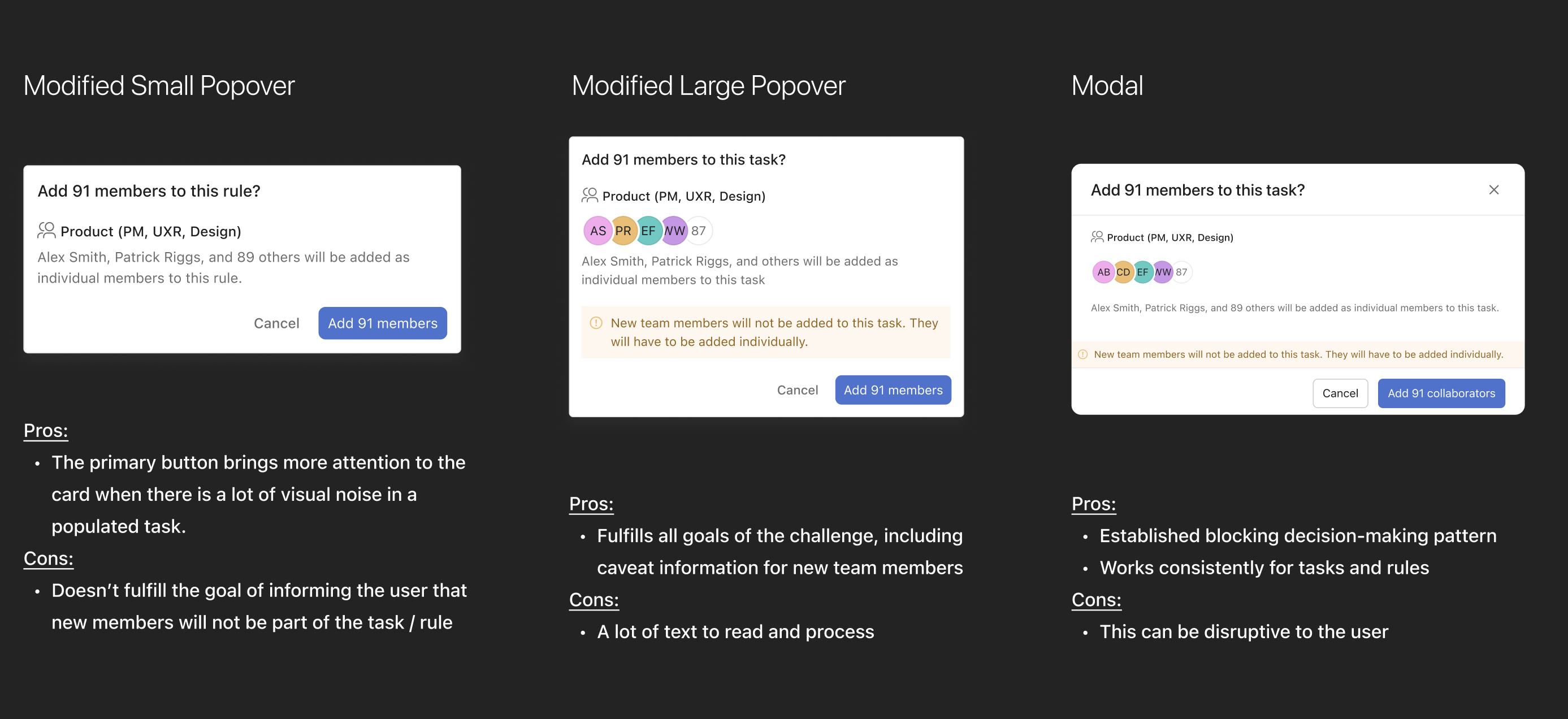
Refining user flows by separating team reference from team task access
For each flow, I worked out why someone would tag a team in the collaborators field versus in the task description or comments. In design crit, a designer pointed out that people often tag a team in text just to reference it, not to add everyone as collaborators.
So when someone tags a team in a description or comment, a card asks whether to add the team as collaborators. “Don’t add” keeps the tag as a reference only. “Add collaborators” keeps the reference and opens the warning modal to confirm. Together, the card and modal separate the decision from the mention and make the user’s intent clear.
Keeping notification copy as is
When someone is added to a task, they get a notification in their inbox. I explored having the copy mention that a team was added, so people would have more context before opening the task. The current copy implies only that individual was added, which can confuse people when a team was actually added and unfurled into individual members.
I presented the pros and cons of keeping the current pattern versus a new one in design crit. We decided to keep it, since these designs are a temporary solution until engineering can preserve teams without unfurling. I agreed on reflection: the current copy matches how the feature works today, where each member is added individually as a collaborator.
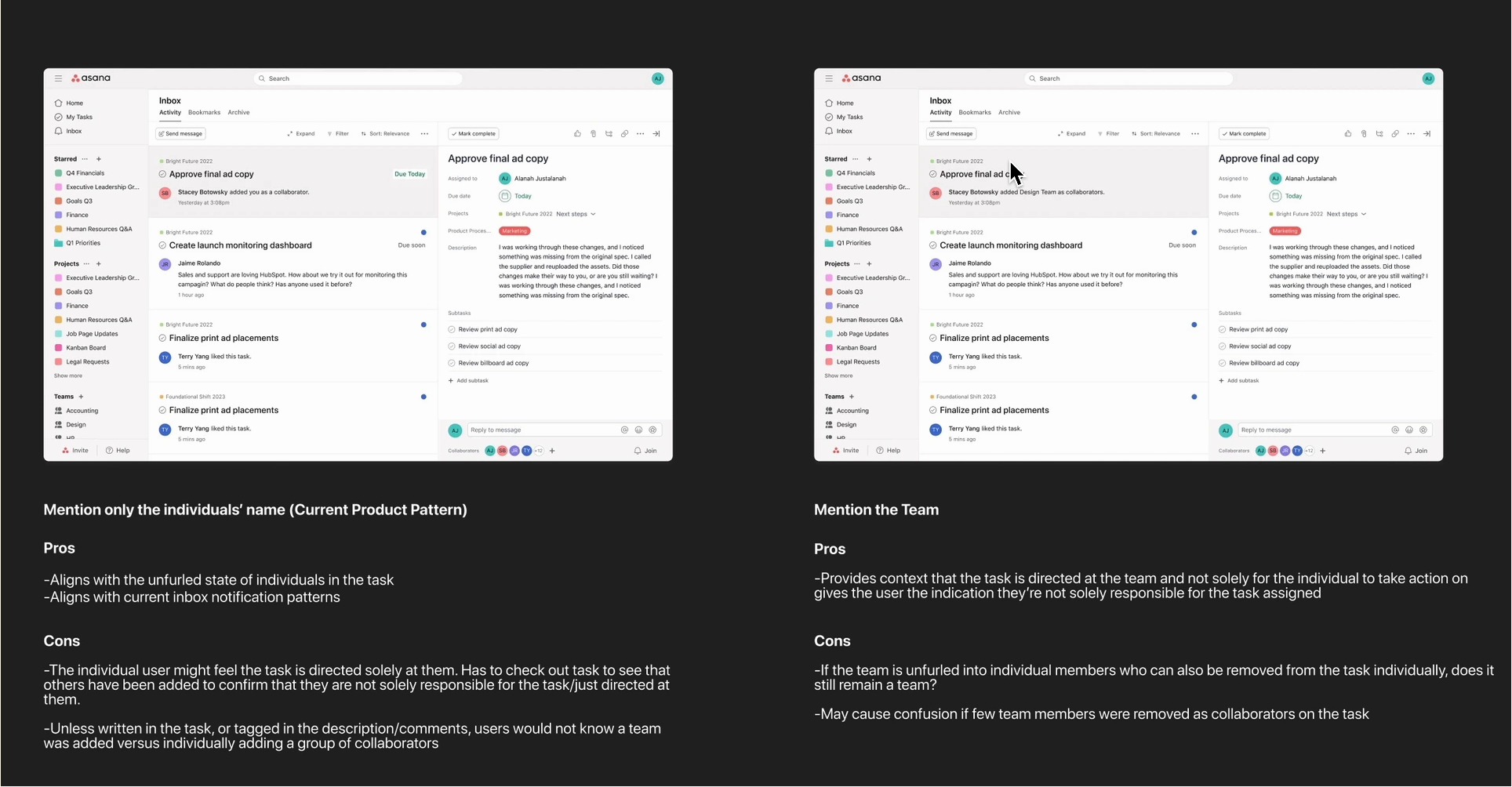
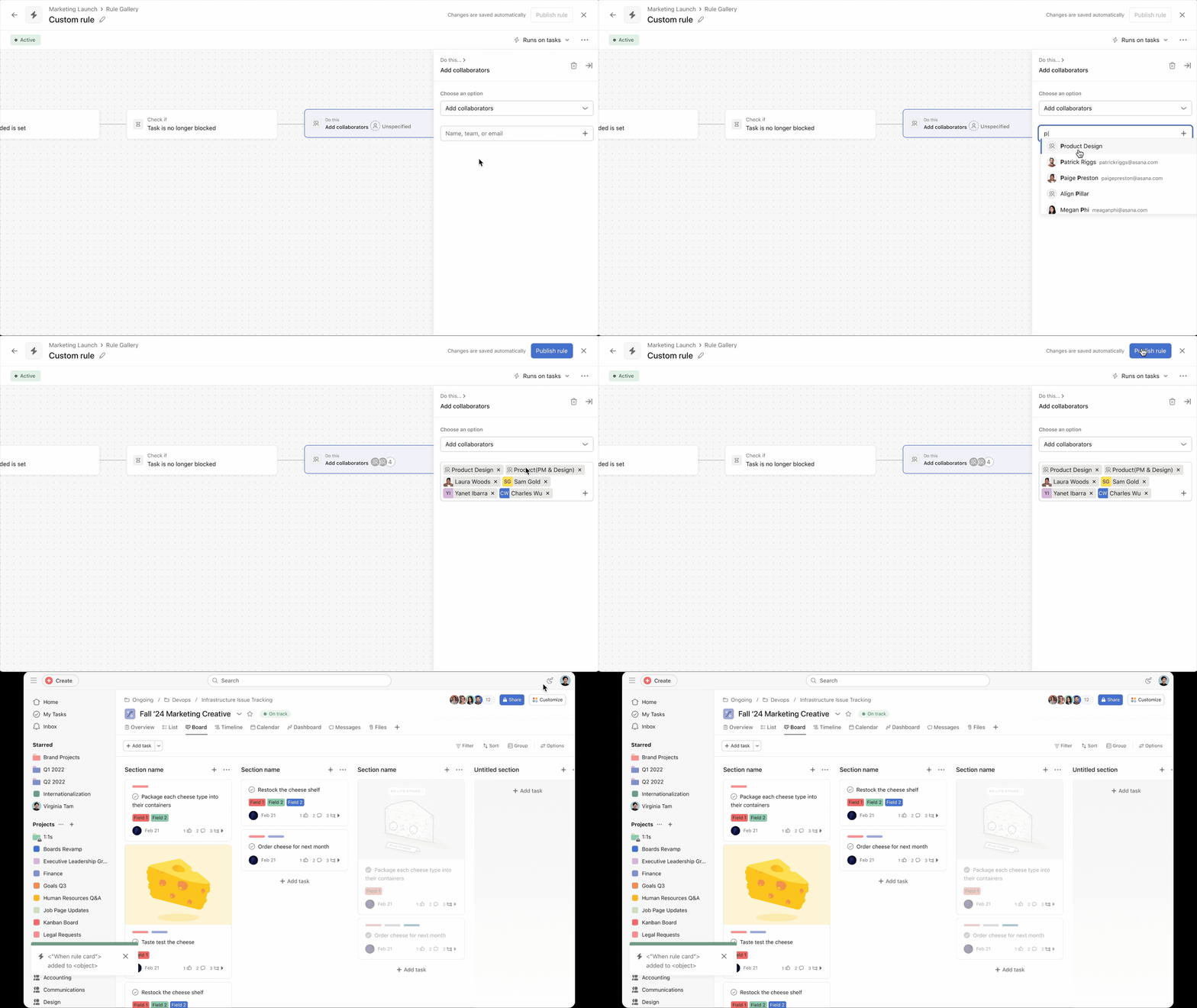
Team tagging for Asana Rules
The scope brief included designing team tagging in Rules, Asana’s automation builder, which triggers actions when set conditions are met to cut manual work and keep tasks and projects consistent. Rules is a different product surface than tasks, so tagged teams stay intact instead of unfurling into individual members.
While investigating, I found that team tagging affected two more Rules actions beyond the one in the brief. A couple of weeks later, Asana began testing team tagging in Rules, so I only had to design the original action and the additional actions the test didn’t cover.
Designing for accessibility
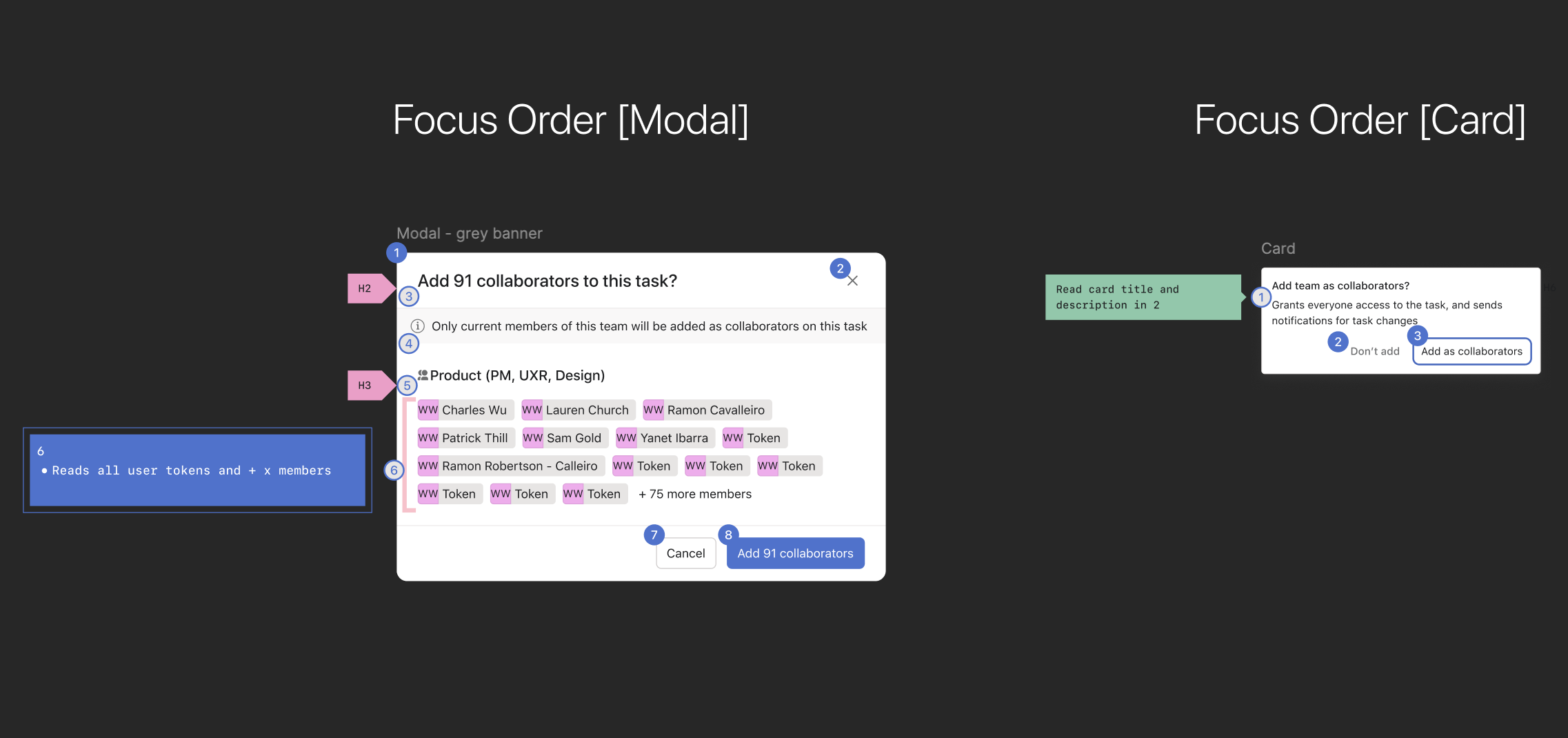
To ensure my designs are accessible to all users, I collaborated with our accessibility designer to learn how to create clear and effective accessibility annotations for engineers. I carefully considered the tabbing order of modals for screen readers and selected appropriate heading sizes to accommodate users with low vision. Reviewing feedback and accessibility resources has heightened my awareness of how design decisions impact everyone, reinforcing my commitment to inclusive design.
Outcomes
Impact
Stakeholders approved the design, and it’s scheduled for implementation. We’ll measure success by how people use it in testing and after launch.
Takeaways
Ask early and often
Feedback from crits, engineers, content, accessibility and design systems made the solution better and faster.
Advocate
I pushed for a consistent warning across entry points, which changed the PM’s scope. I also shared an idea that wasn’t adopted, and it was still worth raising.
Use past work
Researching earlier projects and features already in testing sped up decisions and surfaced new opportunities.